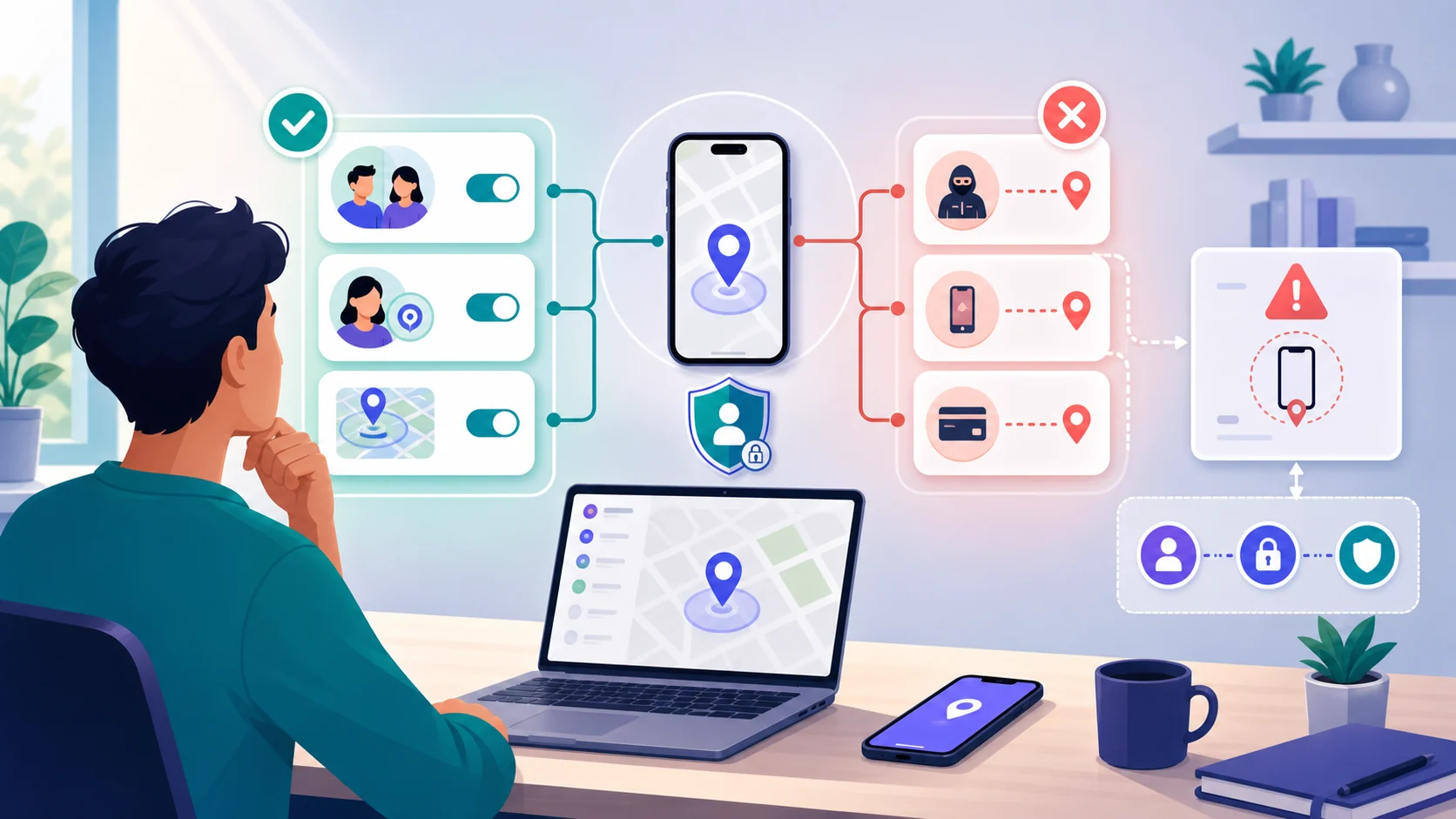

Reviewing app permissions is one of the clearest ways to understand what an Android app can access, but it is not a malware detector. A location, camera, or microphone permission may be normal for one app and unnecessary for another. The useful decision compares access with the app’s purpose, your expectations, and the phone’s Android version.
Google’s current help pages are a starting point, but menu names and locations can differ across Android releases and manufacturer skins. If you suspect that someone is monitoring the phone, stop investigating on that device and use a safer phone or computer for help-seeking before making visible changes.
What app permissions mean

An app permission is an access decision, not a moral label. A navigation app may need location while it is being used; a camera app may need the camera and microphone; a flashlight generally should not need contacts. Context, timing, and the app’s stated purpose matter more than the permission name alone.
 Expert opinion Lorrie Cranor Privacy and usable security researcher
 A permission decision is strongest when people can connect the requested access to a clear purpose and a choice they understand.Carnegie Mellon University
The safest review is a small privacy audit, not a hunt for one suspicious toggle. Start with permissions that expose people, places, conversations, or files, then decide whether the app needs them every day, only while in use, or not at all.
Review the sensitive permission groups

The same access can be reasonable or excessive depending on the app. Use the table as a decision aid rather than a rigid ban list, and remember that newer Android versions may offer more limited choices than older phones.
| Permission group | Often justified when | Question to ask |
|---|---|---|
| Location | Maps, navigation, weather, transport, or a clearly explained nearby feature | Does it need all the time, or only while I use it? |
| Camera and microphone | Calls, recording, scanning, accessibility, or media creation | Does the app explain when capture starts and why? |
| Contacts and phone | Dialers, messaging, calling, or a feature that clearly uses contacts | Can the feature work with selected people instead? |
| Photos and files | Editing, backup, document sharing, or a file the user explicitly selects | Can I grant selected items rather than a whole library? |
| Notifications | Messaging, alarms, calendars, accessibility, or a time-sensitive service | Does the benefit justify seeing notification content? |
| Special access | A clearly understood system function with a documented need | Is this access necessary, visible, and easy to revoke? |
-
Location can reveal routines; prefer the narrowest useful scope.
-
Microphone access deserves a clear purpose and visible expectation.
-
Camera access should match a feature you intentionally use.
-
Contacts and phone access expose information about others too.
-
Review whether an app needs selected items or broad storage access.
-
Notification access may reveal message content and account activity.
Do not rank an app as malicious because it requests a sensitive permission. A permission can be excessive, poorly explained, or unnecessary without proving that the developer is spying on you. The practical response is to limit access when the feature still works, remove the app when its purpose is unclear, or seek specialist help when the situation involves possible abuse.
Use the current Android review path

Google’s Android and Google Play help pages describe the general permission model, but they do not guarantee identical screens on every phone. Pixel, Samsung, OnePlus, Xiaomi, and other manufacturers can rename or relocate controls. Treat the current help page and the device’s own explanatory text as the authority for that phone.

List the purpose
Name the feature you use and the access it plausibly needs before judging the permission.

Review sensitive groups
Use the current Android permission view and read the phone's explanation; labels vary by version and manufacturer.

Limit the scope
Where Android offers a narrower option, choose the least access that still supports the feature you need.

Recheck safely
Watch whether the feature still works and stop if the review suggests monitoring or an unsafe personal situation.
Decide what to allow

The right permission choice depends on both usefulness and exposure. An app can work perfectly with access limited to use, selected files, or a one-time action; another app may stop working if its core function genuinely needs continuous access. Make the smallest change that preserves the feature you actually want.
| Decision | When it fits | What to remember |
|---|---|---|
| Commonly needed | Core feature clearly depends on the access | Still review timing, scope, and data handling |
| Optional or limitable | Feature works with while-in-use, selected items, or one-time access | Choose the narrower option when practical |
| Rarely justified | Purpose is vague or unrelated to the app's main function | Pause, ask the developer, or remove the app if safe |
| Safety exception | The phone may be monitored by another person | Do not investigate or revoke visibly without a safety plan |
When permissions suggest a bigger problem

Permissions can be one clue in a larger pattern, but they cannot identify who installed an app or prove that monitoring is happening. Concern becomes more serious when an unfamiliar access change follows physical access by another person, an account session is unknown, or someone knows private activity without a reasonable explanation.
 Expert opinion Ron Deibert Director, Citizen Lab
 A permission review should support the person's control and safety, not encourage risky investigation on a device someone else may be watching.Citizen Lab
This exception matters because privacy advice is not separate from personal safety. A user who simply wants to reduce data collection can review access; someone facing coercive control needs a safety plan before touching the phone.
After you change access
After changing a permission, test only the feature you intended to affect and observe whether the app still behaves as expected. Keep a short record of the decision if it helps you manage several apps, but do not turn the review into a constant cycle of suspicion based on ordinary battery or notification changes.
| Layer | Question | Why it helps |
|---|---|---|
| Feature | Does the app still do what I need? | Confirms whether narrower access is enough |
| Privacy | Is the permission still necessary next month? | Prevents old access from becoming invisible background exposure |
| Account | Are there unfamiliar sessions or connected services? | Permission review cannot replace account security |
| Safety | Could this change alert or endanger someone? | Routes abuse situations to safer-device support |
Bottom line
Review permissions by purpose, sensitivity, timing, and the narrowest useful scope. Android and manufacturer interfaces change, so current Google guidance and the phone’s own explanations matter more than an old menu screenshot.
Most importantly, a permission is not proof of malware. If the review connects to possible monitoring or coercive control, stop on the phone and use a safer device for help and recovery planning.
Android app permissions FAQ
01 How do Android versions and manufacturers change permission review?
Android releases and manufacturer skins can rename or relocate controls and offer different scope choices. Use current Google guidance plus the explanations on your specific phone rather than relying on a fixed old menu path.
02 Does a sensitive permission prove an app is malware?
No. Permission meaning depends on the app's purpose, feature, timing, developer, and data practices. A sensitive permission may justify review, but it is not proof of malware or stalkerware by itself.
03 What should I do if a permission review suggests unwanted monitoring?
Stop investigating or revoking access on that phone if someone may be watching or retaliating. Use a safer device or location and follow the defensive stalkerware and safe-removal guidance.
04 Should I always deny camera, microphone, or location access?
No. Some apps need those permissions for their stated features. Choose the narrowest option that still supports the feature, and revisit access when the purpose changes.
05 What if an app asks for access that does not match its purpose?
Pause and review the developer, feature explanation, and available narrower choices. Remove the app only when safe; if the phone may be monitored, get specialist advice before making a visible change.