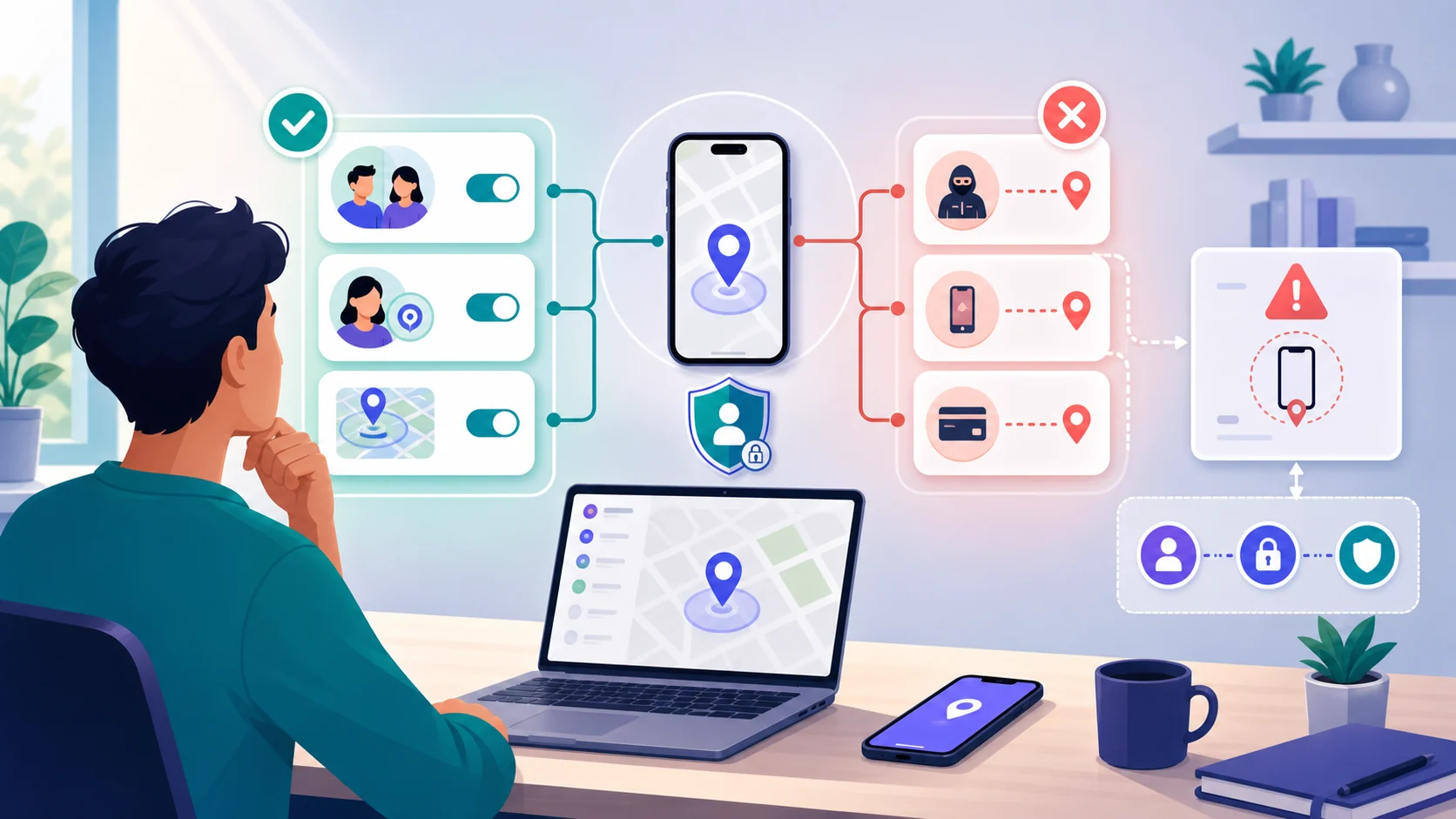

Google Family Link is a family supervision tool, not a hidden monitoring service. It can help a parent or guardian manage some account, app, screen-time, content, and location settings for a supervised child account. The useful setup starts with a conversation about what is being managed, why it matters, and when the family will review the arrangement.
Family Link is not designed to secretly monitor an adult. Google says parents cannot remotely listen to phone calls or see what is on a child’s screen. The available controls also depend on the child’s account, age, country, device, operating system, and the Google service involved.
Check whether Family Link fits

The parent or guardian usually installs Family Link on their own Android or iPhone. The child’s supervised device has different requirements. Google’s current help page says iPhones, iPads, and non-Chromebook computers cannot be supervised as child devices in the same way as supported Android devices or Chromebooks. A child may still sign in to some Google apps on an iPhone, but many Family Link controls will not work there.
| Part of the setup | What Google documents | Planning question |
|---|---|---|
| Parent device | Family Link can be installed on supported Android or iOS devices; some settings are available on the web | Can the parent review controls from a device they use safely? |
| Child Android device | Supported Android versions can receive device-level supervision | Is the device updated and connected to the child’s supervised account? |
| Child Chromebook | Supported ChromeOS devices can receive relevant controls | Which controls apply to ChromeOS rather than Android? |
| Child iPhone or iPad | Many device-level Family Link controls do not work | Would Apple Screen Time or another transparent tool fit better? |
| Family accounts | Age, country, consent, and account type affect supervision | Do both people understand who owns each account and what changes? |
 Expert opinion Eva Galperin Cybersecurity director and technology-abuse researcher
 Full access to a person's phone is the next best thing to full access to a person's mind.Electronic Frontier Foundation
That warning is useful even in a legitimate family setting: access should be limited to a clear purpose and explained to the person using the device. Family Link can support safety and routine, but it should not be used to justify unlimited access to a child’s private life or to supervise an adult secretly.
Google also says Family Link may not be available in every country or region, and a parent generally needs to be 18 or the applicable local age and live in the same country as the child. Treat all account and age thresholds as version- and region-sensitive; check the current Google help page during setup.
Prepare the family accounts and devices

Before opening the app, decide whether you are creating a new child account or adding supervision to an existing Google Account. An existing account involves the child’s knowledge and consent. Write down the practical agreement: what will be limited, what the parent will review, what remains private, and when the settings will be revisited.
| Starting point | What happens | Important boundary |
|---|---|---|
| New child Google Account | The account is created with supervision and family terms | Read the current terms and explain the account’s controls |
| Existing child account | Supervision is added through the documented consent flow | The child must understand and agree where Google requires it |
| Child signs in on iPhone/iPad | Some Google apps can be used | Device-level screen time, location, app activity, and blocking may not work |
| Several child devices | Settings can apply differently by device and platform | Check each device rather than assuming one control is universal |
Do not share a parent password with a child as a substitute for setup. Use the official account flow and keep recovery details current. If a child account is managed under a school or organization, Google Workspace and administrator rules may take precedence over Family Link.
Configure controls together

Family Link settings are separate decisions, not a single level of control. A daily screen limit is different from an app limit. App approval is different from an app’s runtime permissions. Location sharing is different from reading messages, which Family Link does not provide.
| Control | What it can do on supported devices | What it does not promise |
|---|---|---|
| Screen time | Set daily limits, schedules, downtime, lock/unlock, and bonus time | A universal limit across every device, app, or platform |
| Apps and Play | Approve, block, limit, and manage some Google Play content or permissions | Control over every third-party service or billing system |
| Location | Find a supported Android or compatible Fitbit device when sharing and device conditions allow | An always-available history or location when the device is off, offline, or unsupported |
| Account and content | Change some account settings and filters for supported Google services | Remote screen viewing, call listening, or secret message reading |
| Third-party access | Review and remove some external app or site access from the supervised account | Automatic control of data already held by another service |
Google says screen-time limits can lock a supported Android device or Chromebook, while some system apps cannot be limited. App limits and permission controls can also vary by platform and required system function. Google Play purchase approval applies to purchases made through Google Play’s billing system, not all payments a child might make elsewhere.
Location is especially easy to overpromise. It requires the relevant device, internet or mobile connection, location settings, and an enabled sharing path. Google notes that a family manager may see only the most actively used device when a child is signed in on more than one device. Treat it as a current device check, not a complete historical record.
Review the setup over time

The first setup is not the finish line. A control that helped during one school term may be unnecessary later. Review the settings with the child, ask whether the boundary is understandable, and remove controls that no longer serve a clear safety or wellbeing purpose.
-
Make each control understandable before it affects the device.
-
Select the narrowest boundary that addresses the actual concern.
-
Check the real Android, Chromebook, or account behavior rather than assuming.
-
Set a date to revisit consent, age, school needs, and privacy.
Explain the purpose
Tell the child what Family Link can manage, what it cannot see, and why a specific setting is being considered.

Choose one boundary
Start with one screen-time, app, content, or location decision instead of enabling every control at once.
Test the device
Confirm the result on the child’s actual supported device and note platform-specific limits or notifications.

Review together
Set a follow-up date and change or remove controls when the reason, age, or family agreement changes.
Google also provides a way to review third-party sites and apps with access to the child’s account. That review is separate from Family Link’s device controls. Remove access the child no longer needs, and remember that removing permission does not necessarily erase data a third party already received.
Change or stop supervision safely
Supervision may need to change when a child gets older, changes devices, or no longer needs a particular boundary. The exact stop process and who must approve it depend on the account’s age, country, and current Google rules. Use the official Google process rather than deleting settings at random.
 Expert opinion Lorrie Cranor Professor of computer science and engineering and public policy
 I realized that not a lot was known about how to make privacy or security tools usable, so I decided to make that the focus of my research.Carnegie Mellon CyLab
Family Link at a glance
Pros
- Can make family boundaries visible and reviewable
- Combines account, app, screen-time, content, and supported-device tools
- Current Google guidance documents important limits
Cons
- Child-device support varies by platform and country
- Location and screen controls are not universal or always available
- Third-party services can sit outside Google’s controls
- Poorly explained supervision can undermine trust and privacy
Bottom line
Set up Family Link as a transparent family agreement, not as a hidden window into someone’s device. Confirm that the child account and device are supported, start with the smallest useful control, and explain what the parent can and cannot see. Review the result on the actual device and revisit it as circumstances change.
If the intended subject is an adult or the arrangement depends on secrecy, Family Link is the wrong framing. In a safety-sensitive situation, use a safer device and qualified support before changing accounts or supervision.
Google Family Link setup FAQ
01 Can Family Link supervise a child’s iPhone?
Google’s current guidance says iPhones and iPads cannot be supervised as child devices in the same way as supported Android devices or Chromebooks. A child can sign in to some Google apps on iPhone, but screen time, device location, app activity, blocking, and many Chrome controls may not work.
02 What can parents see with Family Link?
Depending on the supported account, device, and feature, parents can manage some account settings, apps, screen time, content filters, and device location. Google says Family Link does not let parents remotely listen to calls or see what is on the child’s screen. It is not complete message or private-life visibility.
03 Does Family Link always show a child’s location?
No. Location depends on a supported Android or compatible Fitbit device, location sharing and device settings, power, and network conditions. If a child uses multiple devices, Google says the most actively used device may be the one shown.
04 Can Family Link block every app or payment?
No. App and permission controls vary by device, required system apps, and service. Google Play purchase approval applies to purchases using Google Play billing, not every payment or third-party service.
05 How do I stop Family Link supervision?
Use Google’s current stop-supervision process for the account’s age, country, and device. The rules can differ for children below the applicable age, teens, and adults. Stopping supervision changes or removes controls; it is not a way to secretly evade a family agreement.